

Drag & drop images here
or use one of the options below · you can also paste an image with Ctrl/Cmd+V
Compression Settings
Quality only affects JPG and WEBP output — PNG stays lossless.
Use {n} for a sequence number. Leave blank to keep original names.
Original Size
0 KB
Compressed Size
0 KB
Saved
0 KB
Compression Ratio
0%
Processing Time
0.0s
Queue
Live Preview
How to Compress JPEG to 100KB Without Losing Too Much Quality
Need to reduce a photo for an upload limit? You can compress your JPEG image to 100KB without making it unnecessarily blurry. The goal is to reduce the file size while keeping the image clear and readable. For a quick solution, use the JPEG compressor to 100KB above, then check the final file before downloading it. Very large images may also need resizing, because JPEG compression alone may not always bring the file below 100 KB.
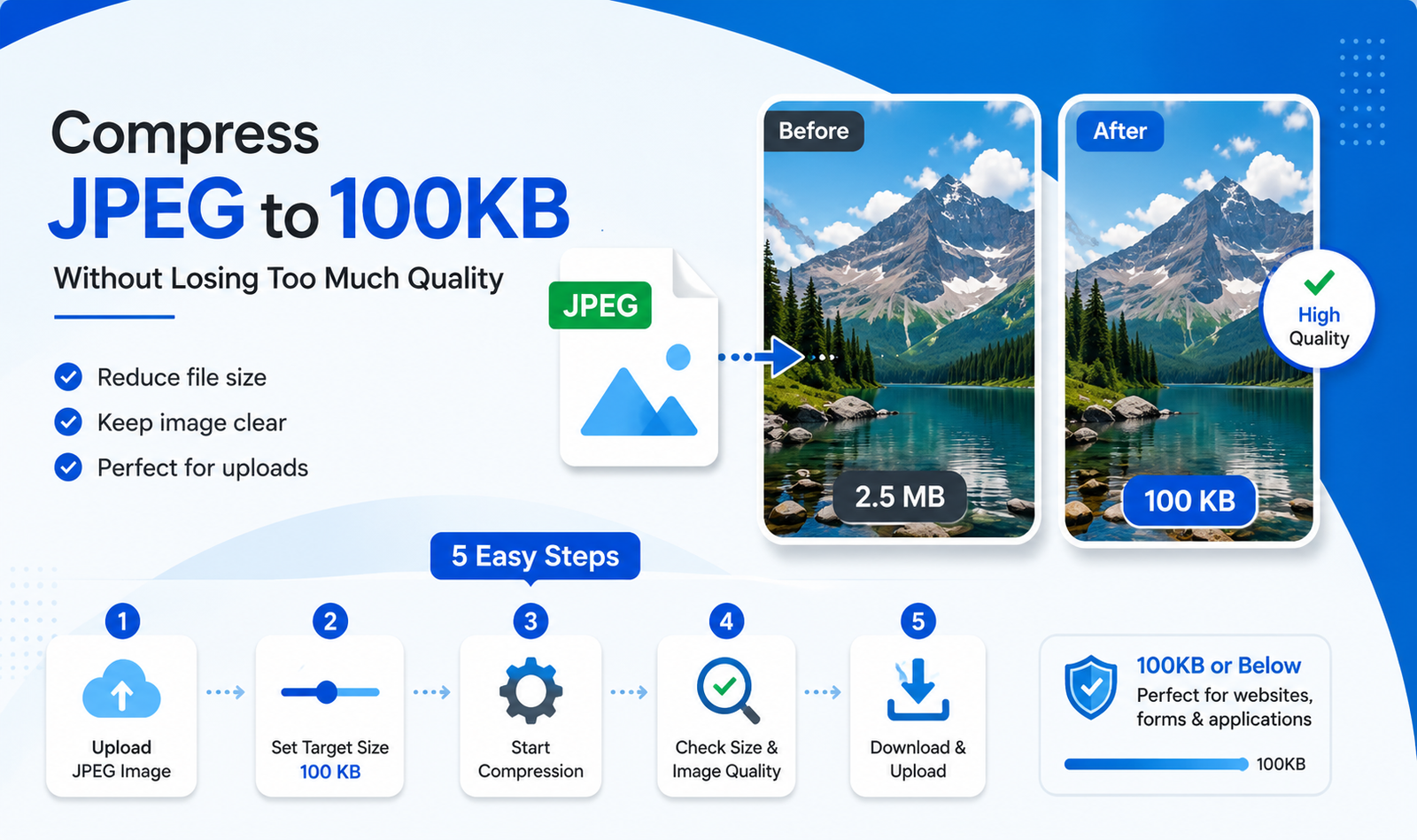
Compress JPEG to 100KB Online
If you need to compress JPEG to 100KB, the easiest option is to use the JPEG compressor to 100KB above. Upload your JPG or JPEG image, set the target size to 100 KB if available, and start the compression process. The tool will create a smaller compressed image that you can download and use for your upload.
After compression, always check the output file size before submitting it. If a website has a maximum upload limit of 100 KB, aim for 100 KB or below rather than trying to reach exactly 100 KB. This gives you a little room if the website checks the file size strictly.
Quick Steps
- Upload your JPEG image.
- Select or enter 100 KB as the target size.
- Start the compression.
- Check the final file size and image quality.
- Download the smaller JPEG and use it for your upload.
What Does a 100KB JPEG Mean?
A 100KB JPEG simply means the image has a file size of around 100 kilobytes (KB). KB measures how much storage space the image file uses. It does not describe the image’s width, height, or number of pixels.
For example, two photos can have the same dimensions but different file sizes because their JPEG quality, compression, and image content may differ.
If a website requires a JPEG under 100KB, the file needs to be smaller than its maximum file size. If the upload limit is 100 KB, it is usually safer to make the image slightly smaller than the limit rather than trying to reach exactly 100 KB.
So, 100 KB is not the same as 100 pixels, and it does not directly describe image resolution.
How JPEG Compression Reduces File Size
JPEG compression makes an image file smaller by reducing some of the information stored in the picture. JPEG uses a type of lossy compression, which means some visual data may be removed during the process. The goal is to reduce JPEG size while keeping the image looking clear enough for normal use.
When you compress JPEG files more heavily, the file usually becomes smaller, but you may notice a drop in image quality. Fine details can become less sharp, and strong compression may create visible artifacts.
JPEG works especially well for photographs because photos contain many colors and small details that can often be reduced without a major change in how the image looks.
The result depends on the original image, its dimensions, existing compression, and the selected compression level. A large, high-resolution photo may need more adjustment to reach 100 KB.
How to Compress a JPEG to 100KB Step by Step
If you are wondering how to compress JPEG to 100KB, you can usually do it in a few simple steps. The important part is to check both the final file size and image quality before using the compressed file.
1. Choose the JPEG You Want to Compress
Start by selecting the photo you want to reduce. JPEG files usually end with .jpg or .jpeg. Before uploading, check the original file size so you can see how much it needs to be reduced.
2. Set the Target Size to 100KB
Upload the image to the 100KB JPEG compressor above and set the target size to 100 KB, if the option is available. A target size is easier than guessing a quality percentage. If the website has a 100 KB maximum, keep the final file at or below that limit.
3. Compress the Image
Start the compression process. The compressor reduces the amount of data stored in the JPEG while trying to maintain useful image quality. Different photos may need different compression levels, so the final output can vary depending on the original image.
4. Check the Result Before Downloading
Before downloading, check the final file size to confirm that it meets your requirement. Compare the compressed image with the original and look at important details such as faces, text, edges, and fine details. If the image looks too blurry, try a less aggressive compression setting when available.
5. Download and Upload the 100KB JPEG
Once the file size and quality look right, download the compressed JPEG. You can then use it on the website, form, application, or other service with a 100 KB upload limit.
What If Your JPEG Is Still Larger Than 100KB?
Sometimes a JPG is still over 100KB even after compression. This can happen when the original image is very large or has high pixel dimensions. A camera photo that is 4000–6000 pixels wide contains far more image data than a smaller web-sized photo, so compression alone may not be enough.
If your JPEG is too large, try reducing its dimensions before compressing it again. If the tool supports automatic resizing, you can use that option along with the target file size. This can make it easier to reduce JPEG size to 100KB while keeping the image useful.
Always keep a copy of the original image. That way, you still have the high-resolution version if you need it later.
Reduce Image Dimensions When Necessary
Image dimensions refer to its width and height in pixels. Resizing an image reduces the total number of pixels, which can significantly lower its file size. For example, reducing a very large photo to a practical web size may make it easier to reach 100KB.
When resizing, keep the same aspect ratio so the image does not look stretched or distorted. Avoid changing the width and height independently unless distortion is acceptable.
How to Keep a JPEG Clear at 100KB
Getting a JPEG to 100KB does not always mean making it blurry. To compress JPEG to 100KB without losing quality, start with reasonable compression instead of immediately choosing the lowest quality setting. For very large photos, resizing the image first can help you reach the target size without putting too much pressure on JPEG quality.
After compression, check the image at normal viewing size. Pay attention to faces, text, edges, and small details. Look for reduced sharpness or visible compression artifacts. If the result looks poor, try a different compression level or resize the image slightly.
It is also better to work from the original file. Repeatedly compressing the same JPEG can gradually reduce image quality and make details less clear.
Why “Without Losing Quality” Has a Limit
There is a practical limit to how much you can reduce an image without affecting its appearance. A multi-megabyte photo may need noticeable compression or resizing to reach 100KB. The realistic goal is acceptable visual quality, rather than promising zero quality loss at every file size.
How to Keep a JPEG Clear at 100KB
Getting a JPEG to 100KB does not always mean making it blurry. To compress JPEG to 100KB without losing quality, start with reasonable compression instead of immediately choosing the lowest quality setting. For very large photos, resizing the image first can help you reach the target size without putting too much pressure on JPEG quality.
After compression, check the image at normal viewing size. Pay attention to faces, text, edges, and small details. Look for reduced sharpness or visible compression artifacts. If the result looks poor, try a different compression level or resize the image slightly.
It is also better to work from the original file. Repeatedly compressing the same JPEG can gradually reduce image quality and make details less clear.
Why “Without Losing Quality” Has a Limit
There is a practical limit to how much you can reduce an image without affecting its appearance. A multi-megabyte photo may need noticeable compression or resizing to reach 100KB. The realistic goal is acceptable visual quality, rather than promising zero quality loss at every file size.
Practical Tips for Getting a JPEG Under 100KB
Getting a JPEG under 100KB is easier when you balance file size with image quality. These simple tips can help:
• Start with the original image instead of an already compressed copy. This gives you more room to reduce the file size.
• Use JPEG for photographs, as it is designed to store photos efficiently.
• Reduce unnecessary image dimensions if the photo is much larger than you need.
• Use a target-size compressor when possible instead of guessing different quality percentages.
• After compression, check the final file size and make sure important details remain clear.
• If you need to compress a photo to 100KB, avoid extremely aggressive compression unless it is necessary.
• Do not repeatedly compress the same JPEG. Each new compression can reduce quality further.
• Keep a high-quality backup of the original so you can create another version later if needed.
Common Problems When Compressing JPEG to 100KB
Compressing an image to a specific file size can sometimes create unexpected problems. If your result does not look right or a website refuses the file, these simple fixes can help.
The Image Is Still Above 100KB
If your JPG is still over 100KB, the image may have very large dimensions. Try reducing its width and height, then compress it again using the original file. Avoid relying only on a quality slider, as a large image may still remain too big even at lower quality settings.
The Image Looks Blurry
If the compressed image looks blurry, the compression may be too aggressive. Try using a less aggressive setting or slightly larger dimensions while keeping the file within the required limit. Compare the result with the original before choosing the final version.
Text in the Image Is Hard to Read
JPEG compression can affect small text, sharp lines, and other detailed graphics. If text becomes difficult to read, preserve more image quality and reduce the dimensions carefully. If the upload system allows another format, consider a format better suited to text-heavy images.
The Website Rejects the 100KB File
Check the website’s exact upload limit and file requirements. If it says 100 KB maximum, make the image slightly smaller than 100 KB. Also confirm that the file is actually saved as JPG or JPEG if that format is required.
When Is a 100KB JPEG Useful?
A 100KB photo can be useful whenever a website or service places a strict file-size limit on image uploads. For example, you may need a 100KB image for upload when submitting an online application, registration form, profile picture, or job application.
Smaller JPEG files can also be convenient for email attachments and website forms because they use less storage space and are easier to upload. Some websites may require a JPEG under 100KB for documents, applications, or other submissions.
The exact requirements vary from one website or service to another. Always check the stated upload limit, required image format, and any dimension requirements before compressing your photo.
Frequently Asked Questions About Compressing JPEG to 100KB
Upload your image to the JPEG compressor above, set the target size to 100 KB, and start compression. Check the final file size before downloading it.
Use a target-size compressor and select 100 KB or a smaller target. If the image remains too large, reducing its dimensions can help.
Some quality loss may occur when reducing a large image significantly. Start with moderate compression and check the result for sharpness and visible artifacts.
The original image may have very large dimensions or contain a lot of image data. Try resizing it and then compressing it again from the original file.
If the image is very large, resizing can make it easier to reach the target size while keeping better visual quality.
There is no single quality setting that works for every image. The right setting depends on the original image, dimensions, and desired file size.
Compress Your JPEG to 100KB and Download It
Upload your JPEG to the Up Brands image compressor, set the target size to 100 KB, and start compression. Check the output to make sure the file size meets your requirement and the image still looks clear. Once satisfied, download the compressed JPEG and use it for your form, website, or other upload. Keep the original file safely stored for future use.